
Information provided is based on research. We strive for accuracy, but consult professionals for personalized advice. External links are not under our control. See our Privacy Policy for details.
AutoCAD is one of the most powerful design software platforms used by architects, engineers, and construction professionals. Whether you’re working on a large-scale infrastructure project or a small component design, understanding how to control scale in AutoCAD is essential to ensure your drawings are accurate and useful.
In this guide, we will walk you through everything you need to know about changing scales in AutoCAD, from the basics to advanced tips. We’ll also touch on why mastering scale is so important in professional drawing and design settings.
Read Also: How to Use the Fillet Command in AutoCAD – AutoCAD’s Most Overrated Feature
Why Is Scale Important in AutoCAD?
Scale is crucial because it affects how your design is perceived and interpreted. When engineers or architects present their designs, their drawings need to accurately reflect real-world dimensions. Scaling in AutoCAD allows you to control the relationship between the size of your drawing and the actual size of the objects in the real world.
For instance, in architectural drawings, you might represent a large building on a small piece of paper. Without proper scaling, the design could appear distorted, making it difficult to visualize or build from. On the other hand, improper scale settings could also lead to wasted materials, flawed construction, and potential project delays.
Basic Concepts of Scaling in AutoCAD
Before diving into how to change scale in AutoCAD, it’s important to grasp a few fundamental concepts:
- Model Space vs. Paper Space: Model space is where you create your drawing. Paper space is where you lay out the drawing for printing or presentation. Scaling primarily occurs in paper space, but it is essential to understand the connection between these two spaces.
- Scale Factor: The scale factor determines how many units in your drawing space correspond to units in real life. A scale factor of 1:100, for instance, means that 1 unit in AutoCAD equals 100 units in reality.
- Annotation Scale: Annotation scale controls the size of dimensions, text, and other annotations in your drawing, ensuring that these elements remain readable at different scales.
Step-by-Step Guide: How to Change Scale in AutoCAD
1. Changing Scale in Model Space
While working in model space, you’re working at a 1:1 scale, meaning your drawings represent real-world dimensions directly. However, when you switch to paper space to create layouts for printing or plotting, you often need to adjust the scale.
Here’s how to change the scale in AutoCAD’s model space:
- Step 1: Open your drawing in AutoCAD.
- Step 2: Switch to the model space by clicking the “Model” tab at the bottom left of the workspace.
- Step 3: Select the objects or components you want to scale. You can do this by typing
SELECTor using your mouse. - Step 4: Type
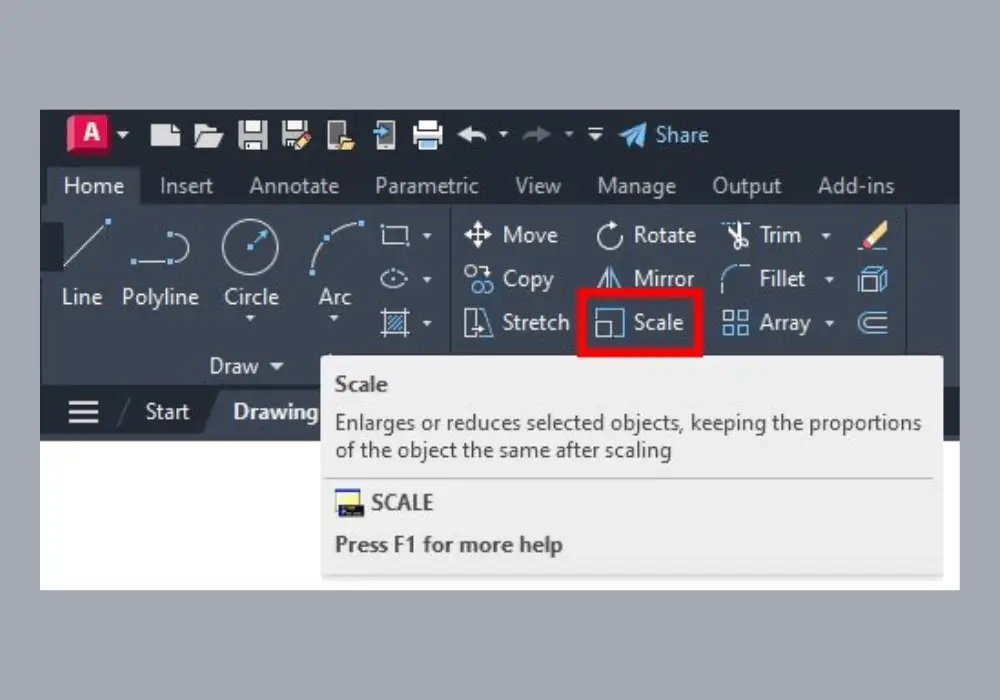
SCALEin the command line or select the scale icon from the “Modify” toolbar. - Step 5: Specify a base point for the scale operation. This will determine the anchor point for scaling.
- Step 6: Enter the scale factor you want to apply. For example, entering
0.5will shrink the object by 50%, while entering2will double its size.
Note:
Keep in mind that scaling objects in model space may not affect their annotations. You will need to adjust the annotation scale separately if necessary.
2. Changing Scale in Paper Space
Scaling is most commonly done in paper space when you’re preparing a drawing to be plotted or printed. This allows you to present a large design (such as a building) on a smaller piece of paper without distorting the proportions.
- Step 1: Open your drawing and switch to the layout (paper space) tab. You will see your drawing in a viewport.
- Step 2: Click on the viewport boundary to activate it.
- Step 3: Type
ZOOMinto the command line or select the zoom tool from the toolbar. - Step 4: Enter a scale factor in the following format:
1/Xxp, whereXrepresents the scale you want. For example,1/100xpwould create a 1:100 scale drawing. - Step 5: Press
Enterto apply the scale factor. Your drawing should now be scaled appropriately within the viewport.
Scaling Best Practices in AutoCAD
AutoCAD offers various scaling tools and commands that make it easier to ensure your drawings maintain accuracy and professionalism. Here are some best practices for using scale in AutoCAD:
- Use Viewports Effectively: Viewports allow you to present your drawing at different scales within the same layout. This is particularly useful for showing both the big picture and detailed sections of a design.
- Layer Control: When working on large projects, it’s a good idea to use layers to control the visibility and scaling of different components. For example, you may want to hide annotations when zooming in on a detail while keeping structural elements visible.
- Check Annotation Scale: Always double-check the annotation scale after changing the drawing scale. Dimensions, text, and hatch patterns should remain consistent and readable at the new scale.
Troubleshooting Common Scaling Issues
Scaling can sometimes be tricky, especially when working on complex drawings. Below are a few common issues you may encounter and how to resolve them:
1. Annotations Are Too Small or Too Large
If your annotations (text, dimensions, etc.) appear too large or too small after scaling, this usually indicates an issue with the annotation scale. To fix this:
- Select the annotation.
- Adjust the annotation scale in the properties panel to match the viewport scale.
2. Viewport Doesn’t Scale Properly
If your viewport doesn’t display the correct scale, double-check the settings by:
- Right-clicking the viewport border.
- Selecting “Properties.”
- Verifying that the viewport scale matches your intended scale factor.
3. Objects Disappear After Scaling
If objects disappear after applying a scale, it’s possible you’ve scaled them too small or moved them off-screen. Undo the scale operation and reapply it with a more appropriate scale factor.
Advanced Techniques for Scaling in AutoCAD
For those who want to take scaling to the next level, here are some advanced methods and tools:
1. Using the Scale List
The scale list in AutoCAD lets you predefine commonly used scale factors. This is helpful for large projects where you frequently switch between scales (e.g., between 1:50 and 1:100).
2. Non-Uniform Scaling
In some cases, you may want to scale an object in one direction (either horizontally or vertically) while leaving the other dimension unchanged. To do this:
- Select the object.
- Type
SCALEand press enter. - When prompted for a scale factor, enter a value for the X, Y, or Z-axis individually.
3. Dynamic Blocks
Dynamic blocks in AutoCAD allow you to scale objects while maintaining certain constraints. For instance, you can create a door block that scales in width but keeps the door frame and handle proportions intact.
Industry Statistics on AutoCAD Usage
AutoCAD is one of the most widely used design tools in the world. As of 2023, over 10 million professionals globally use AutoCAD across industries like architecture, engineering, and product design . Of these users, 75% report that scaling is among the most frequently used functions in the software .
In large architectural firms, scaling errors can cost anywhere from $10,000 to $50,000 in delays and wasted materials, highlighting the importance of mastering this feature .
Helpful Resources and Tutorials for Scaling in AutoCAD
If you’re looking to dive deeper into scaling in AutoCAD, check out the following resources:
- Autodesk’s Official AutoCAD Tutorials: Autodesk offers comprehensive guides on scaling, layout, and model space.
- AutoCAD Scale Command Overview on CADNotes: A detailed breakdown of scaling methods in AutoCAD, with visual examples.
- YouTube Tutorials: You can find numerous video tutorials that visually demonstrate how to change the scale of objects and layouts in AutoCAD.
Conclusion
Mastering scale in AutoCAD is essential for anyone working in the design, engineering, or architecture fields. Whether you’re scaling objects in model space, adjusting viewports in paper space, or troubleshooting common scaling issues, following the steps outlined in this guide will help ensure your drawings are accurate and professional.
By learning how to scale effectively, you’ll not only produce better drawings but also reduce errors, save time, and avoid costly mistakes in the design process. As AutoCAD continues to evolve, understanding scale will remain a fundamental skill that all professionals need to have in their toolkit.
